AIP
Connect WhatsApp
Let customers ask questions, share files, and get replies from your Agent in WhatsApp.
Before you start
Prepare an enabled Agent and a Meta account that can manage the business portfolio, WhatsApp Business Account (WABA), and app.
Prepare the WhatsApp account
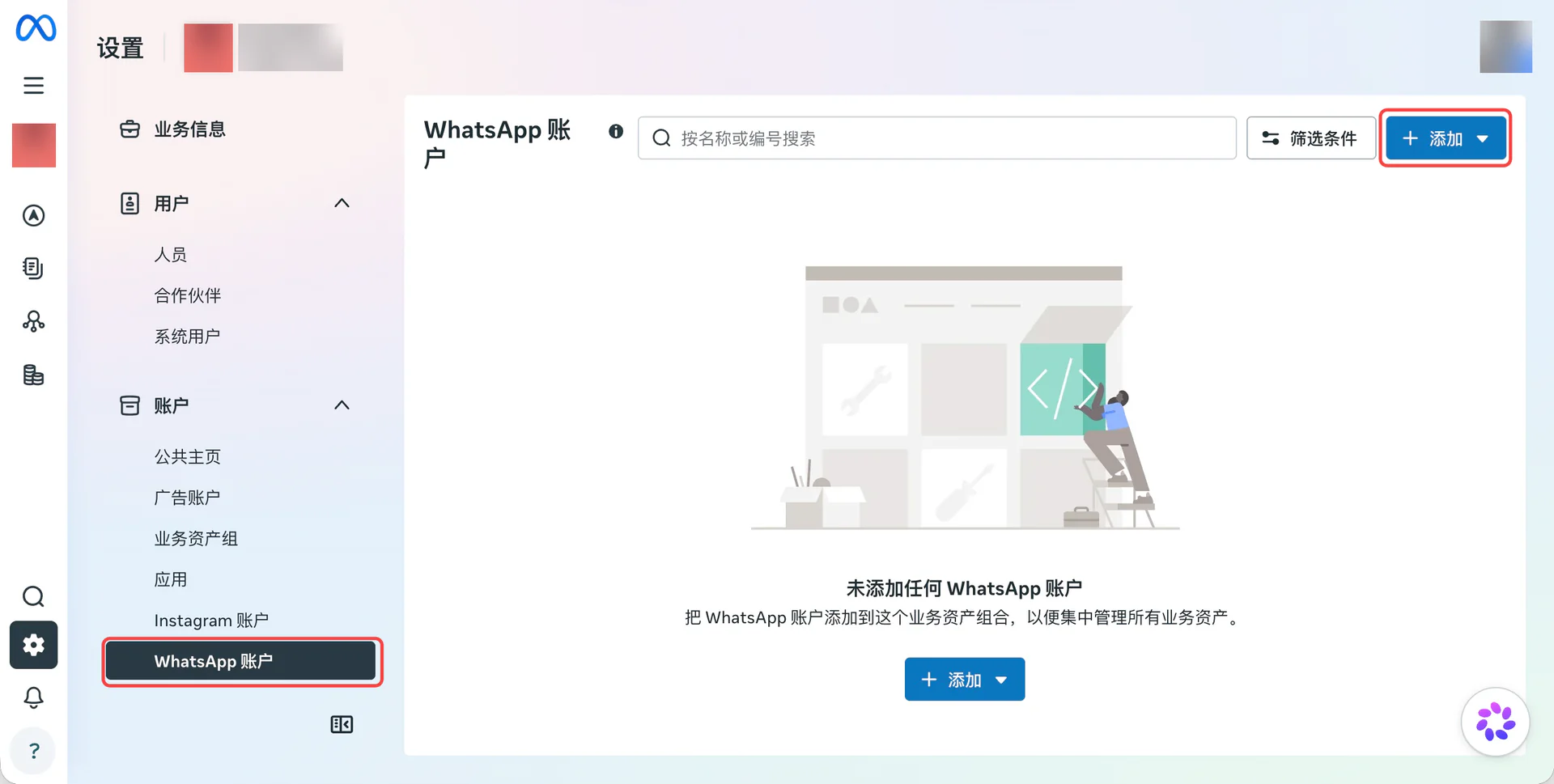
Open Meta Business Suite, select the business portfolio, then go to Settings → Accounts → WhatsApp accounts. Reuse an existing account and number when available.
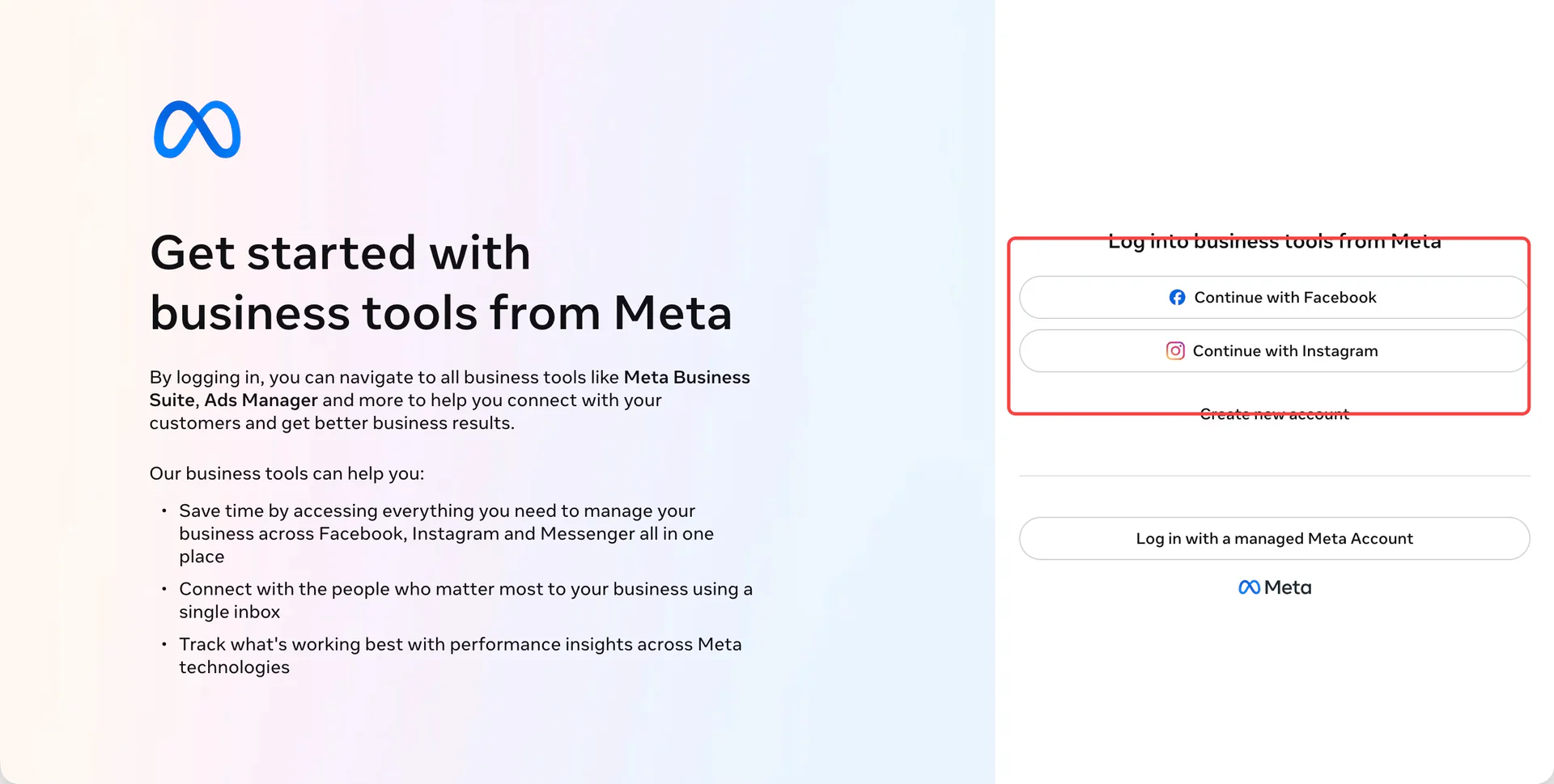
First time: sign in and create an account
Choose the sign-in method for your account.
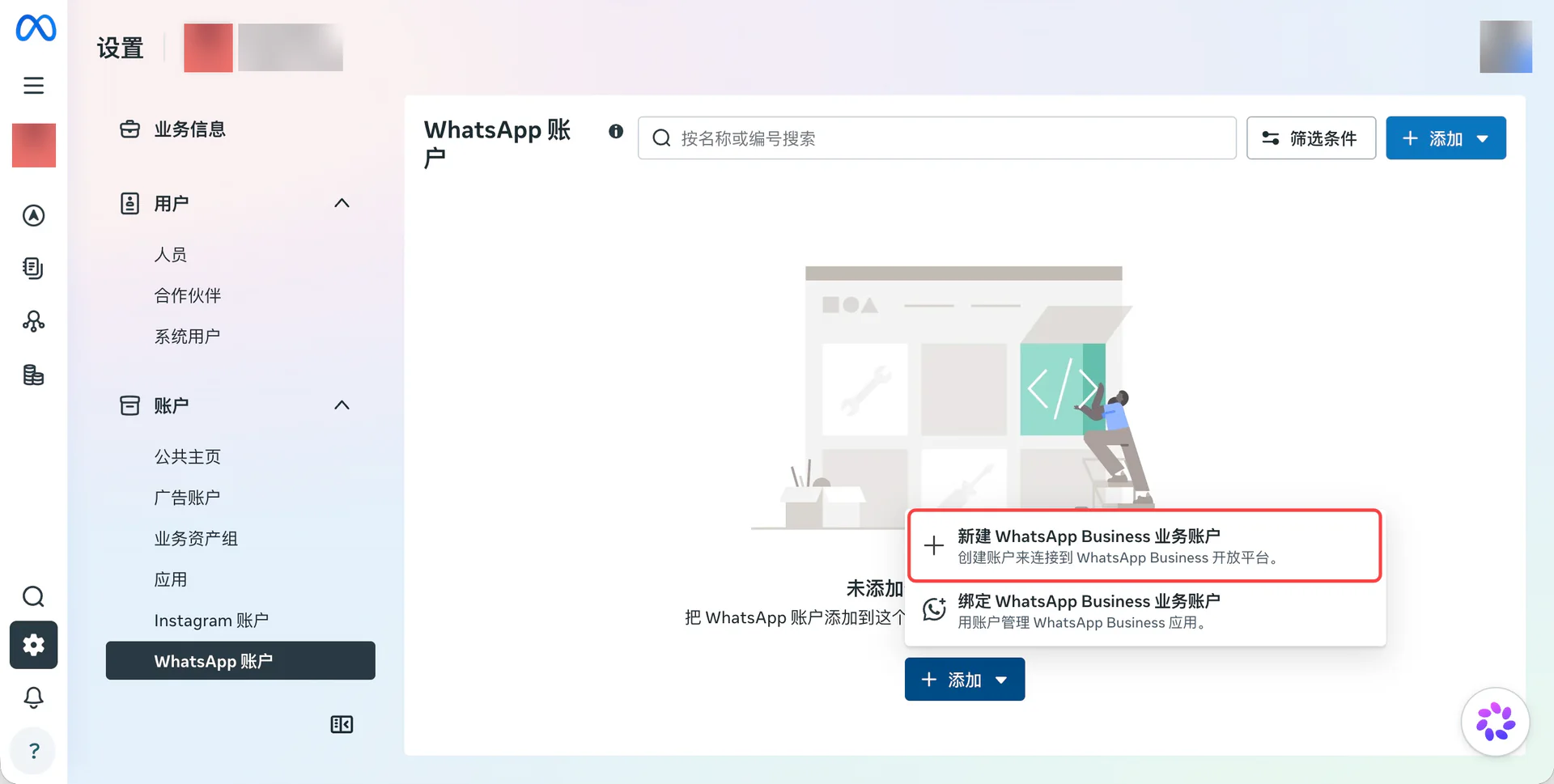
Select Add → Create a WhatsApp Business account.
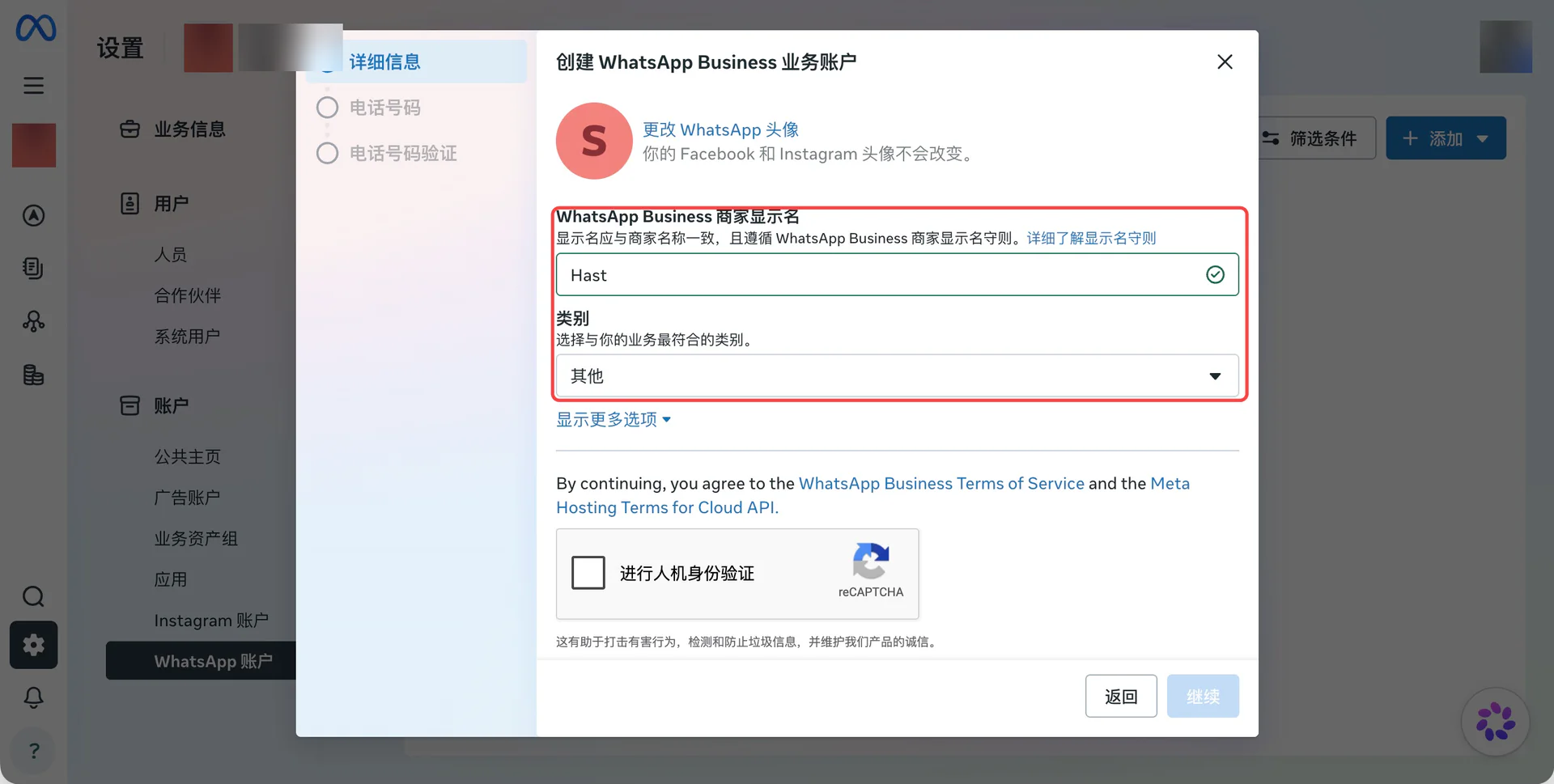
Enter the real company or brand name and category, then complete the requested verification.
Choose from the number options offered to your account. Verify the number if you bring your own.
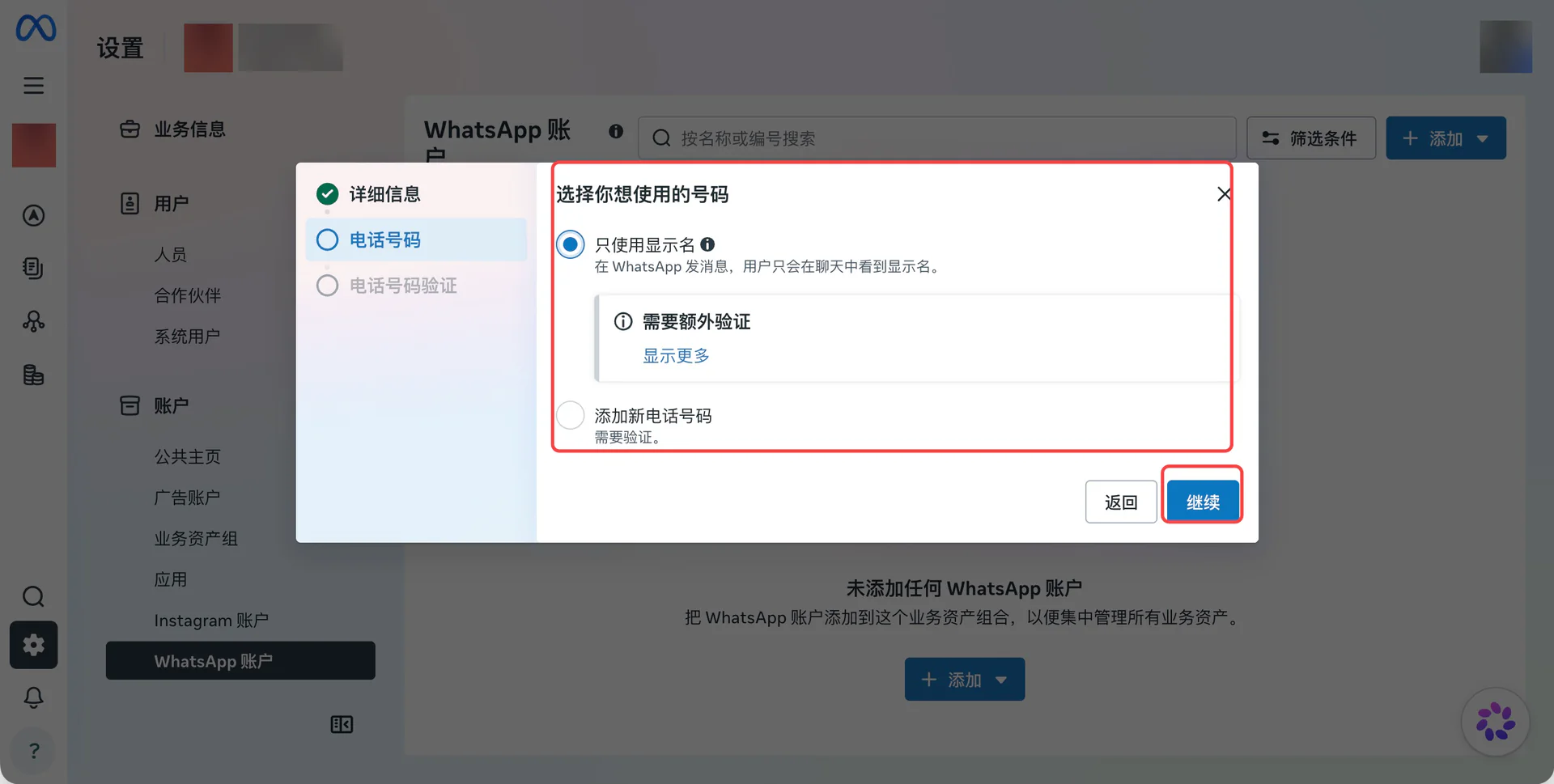
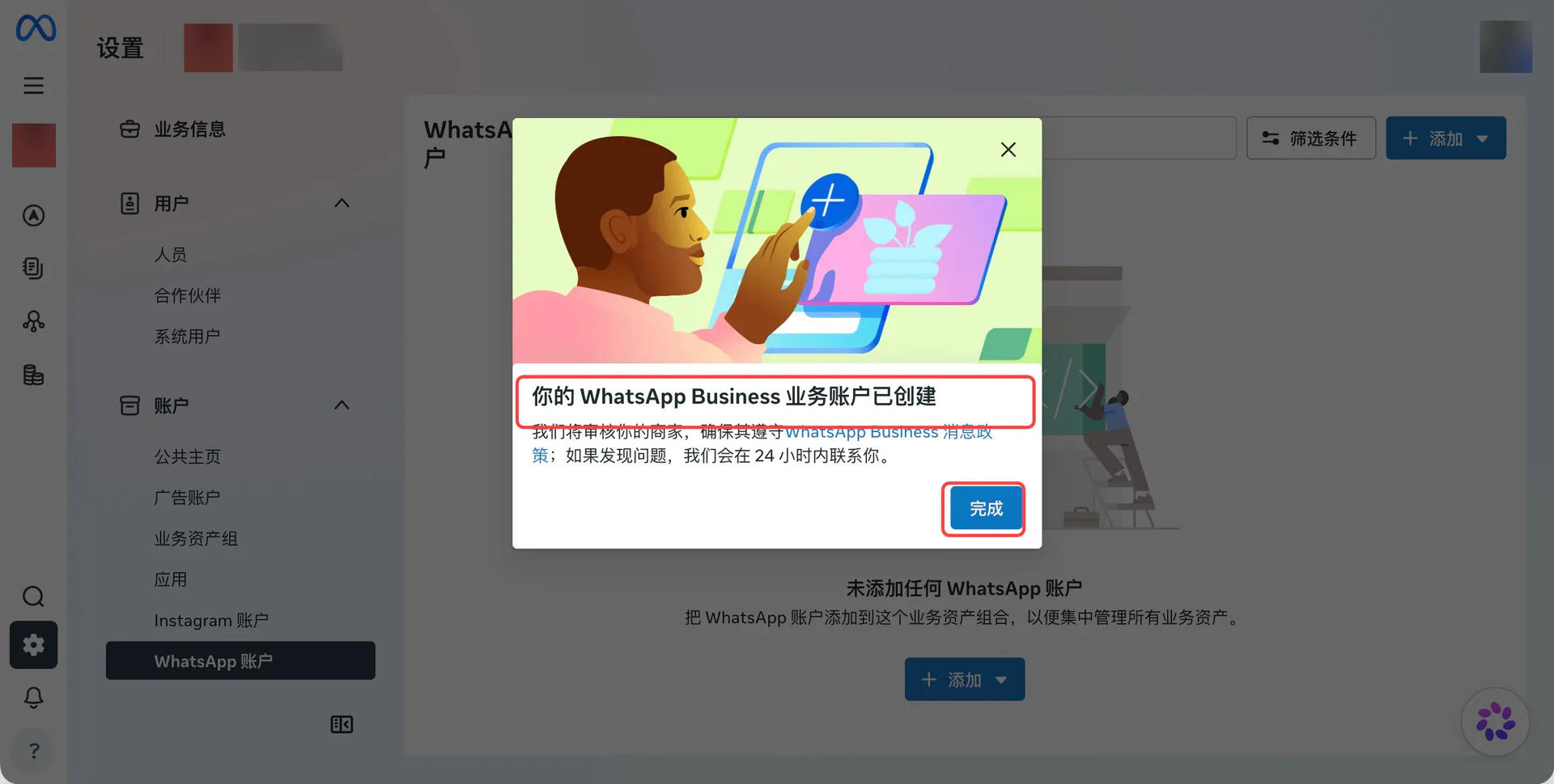
Return to the account list after creation. Check Meta for the display-name review and number status.
Prepare the Meta app
Open Meta for Developers. Select or create a business app in the same portfolio as the WABA.
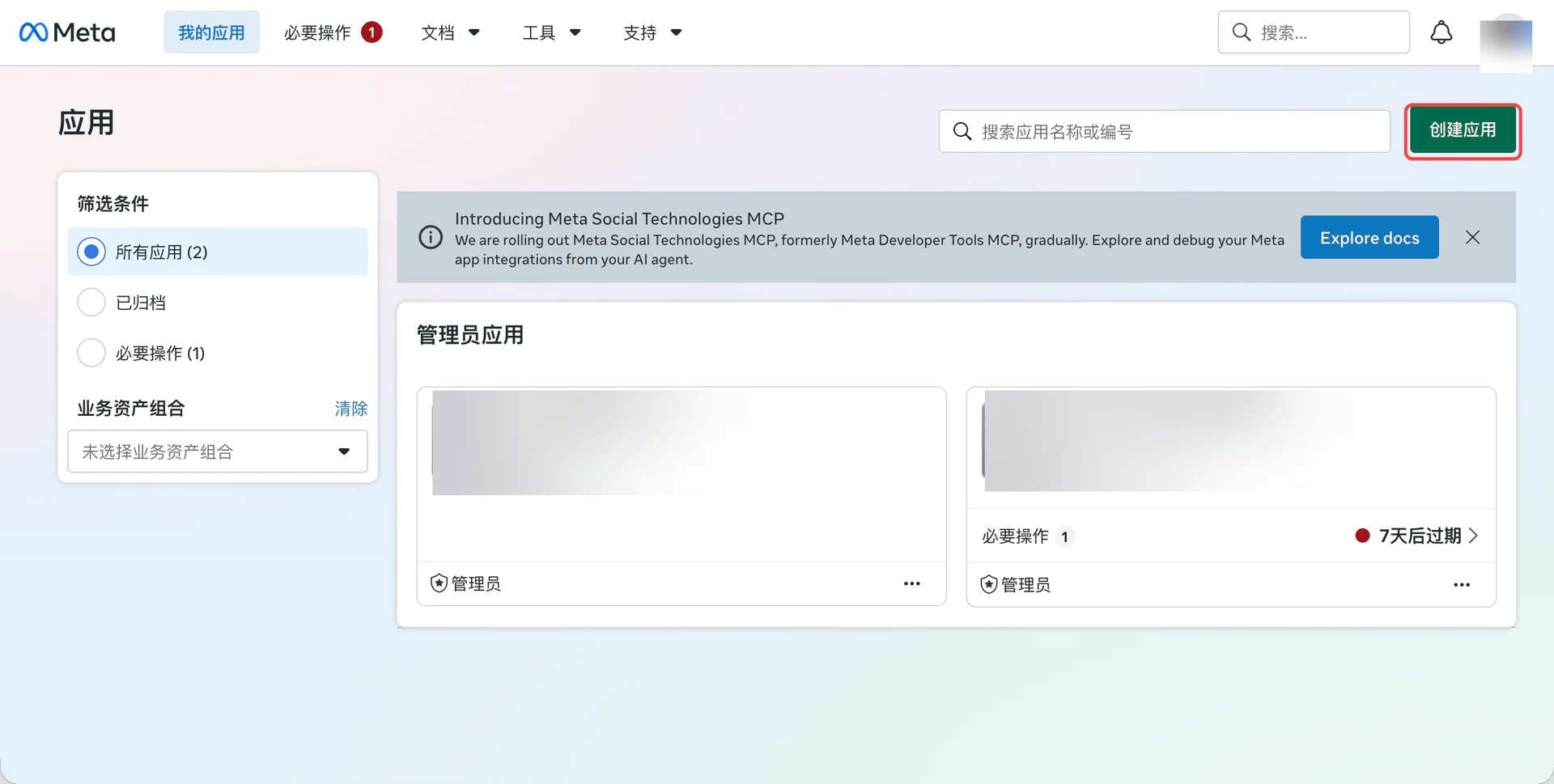
No app yet: creation steps
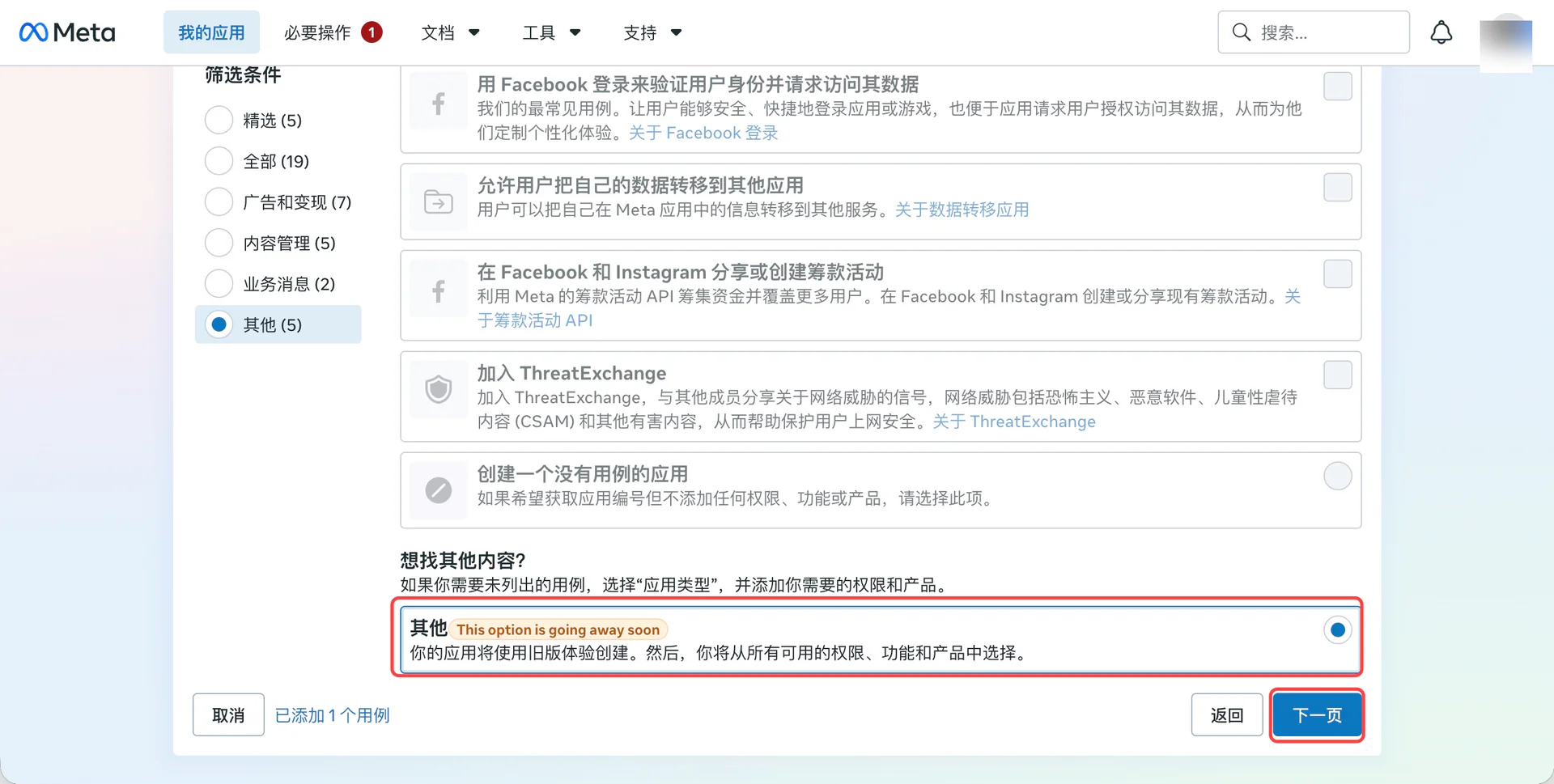
Enter an app name and contact email. Choose the WhatsApp use case when available.
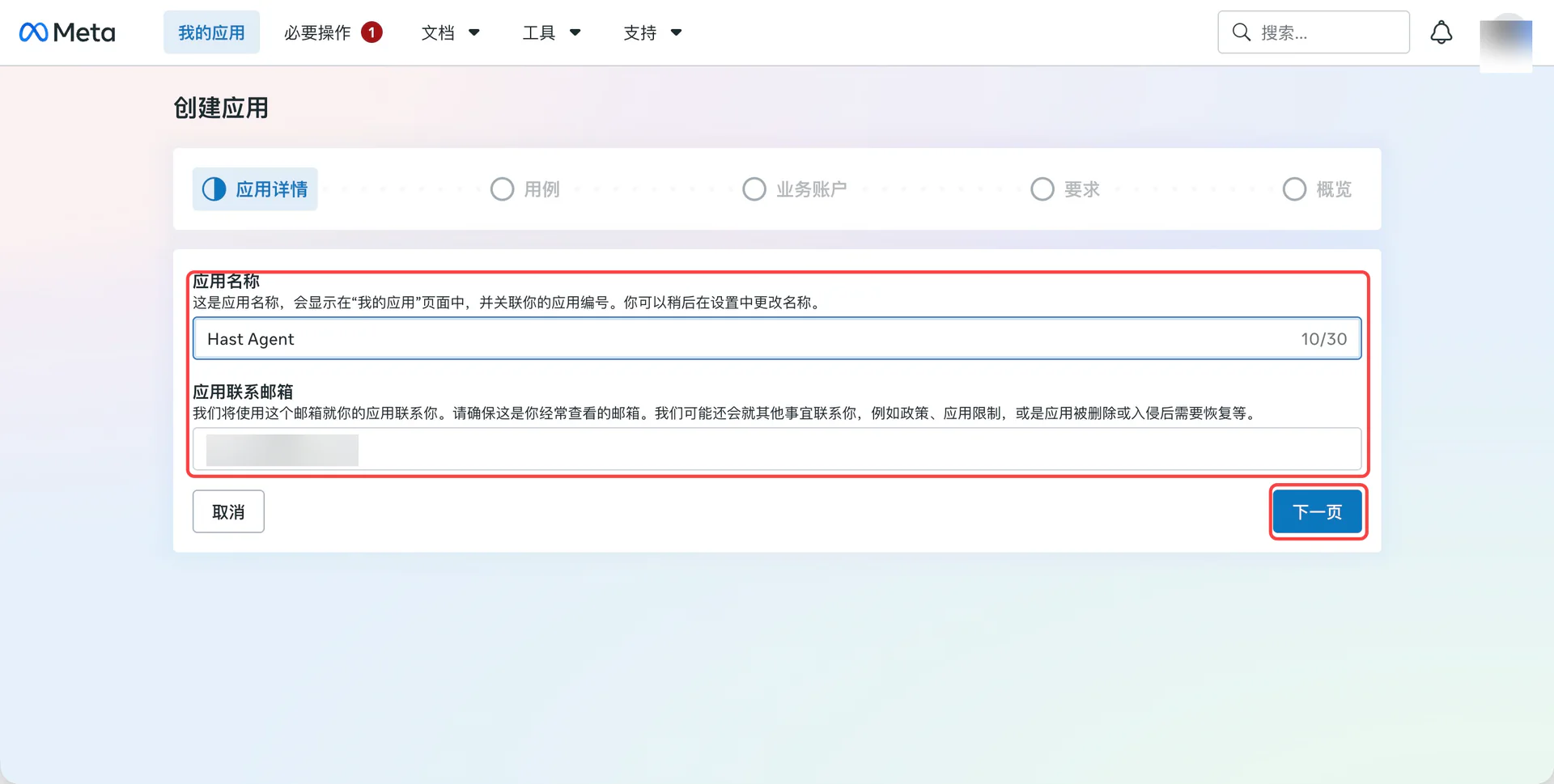
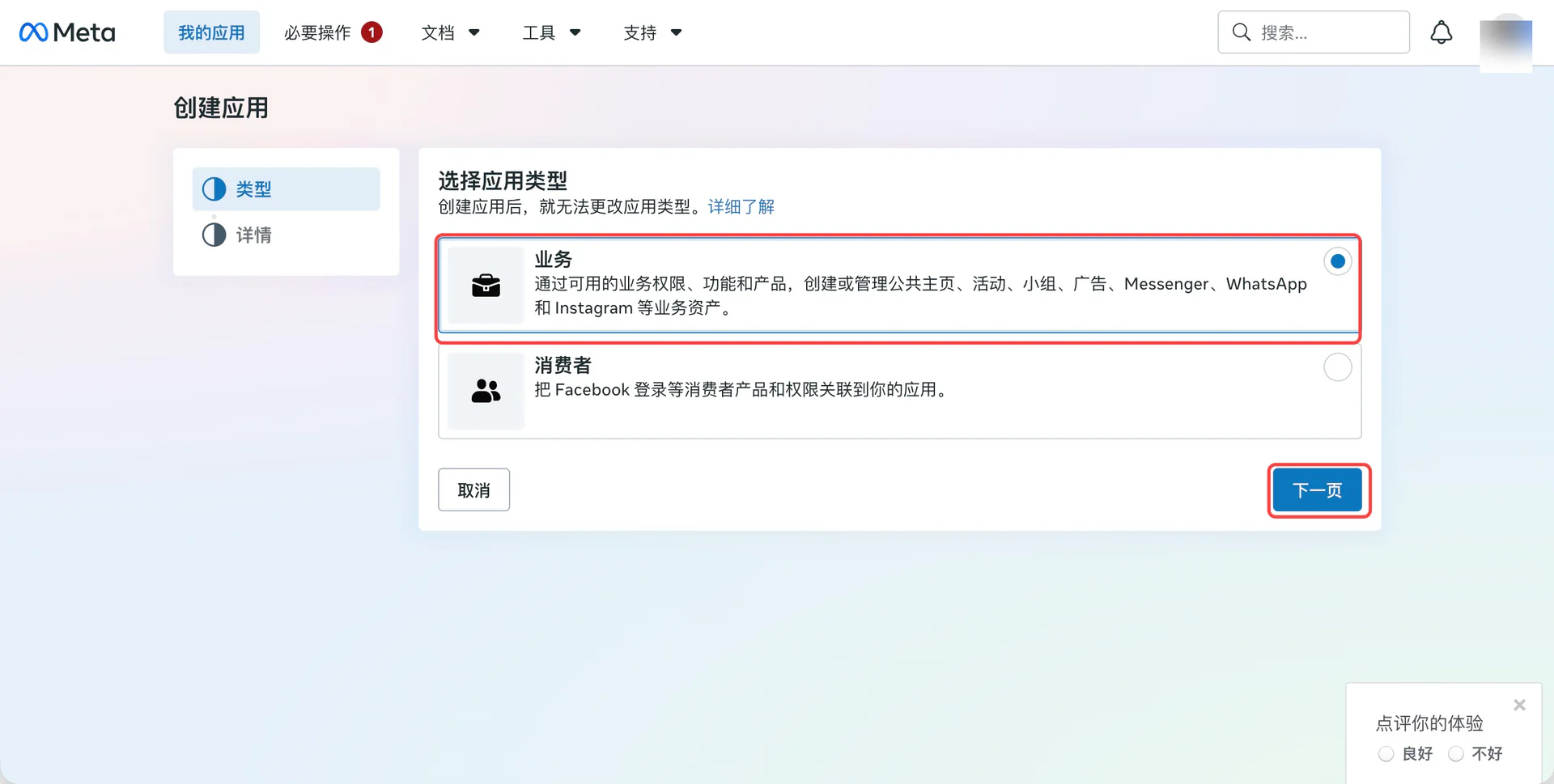
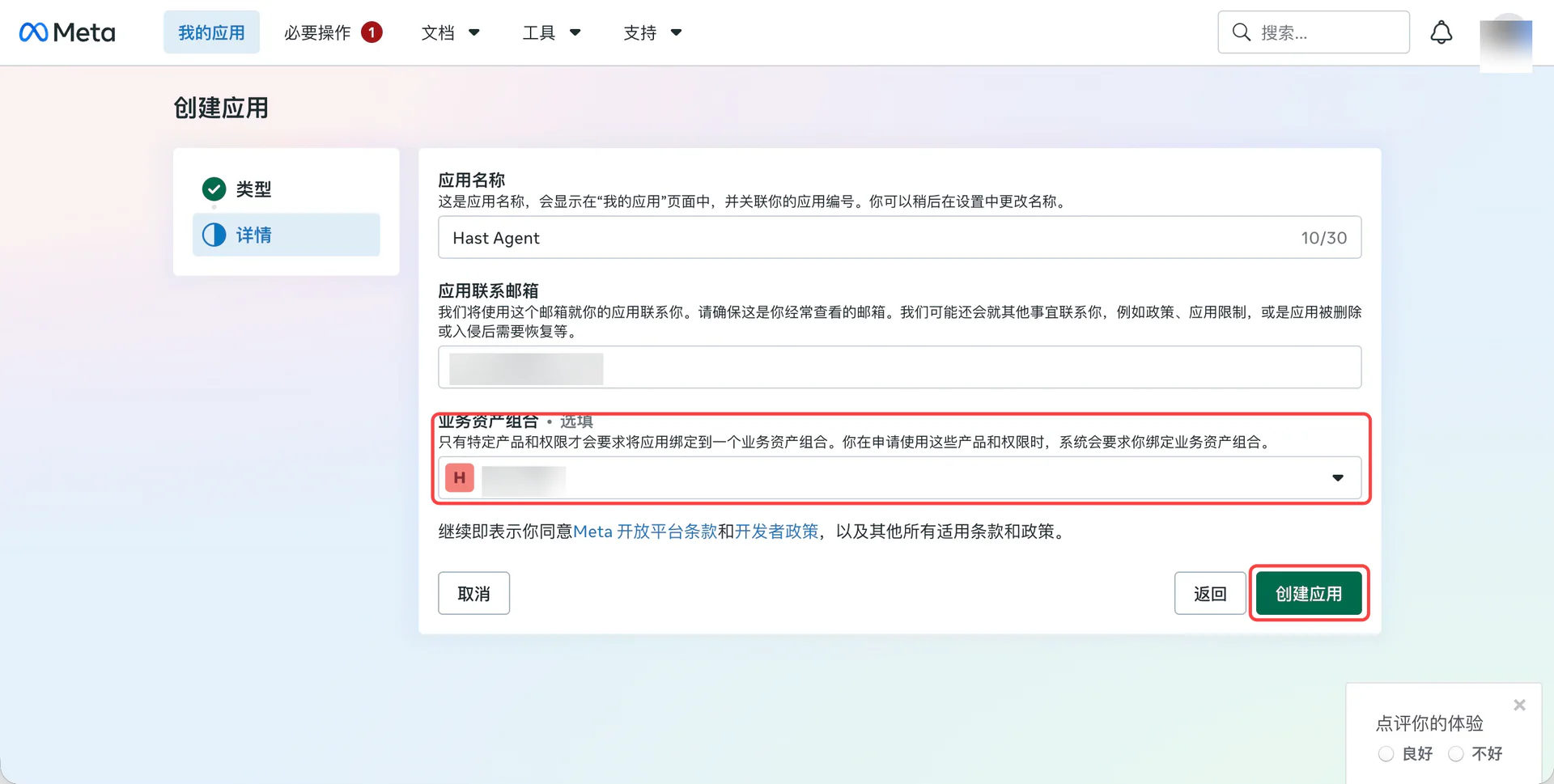
Select the target business portfolio and create the app.
Get the number and account IDs
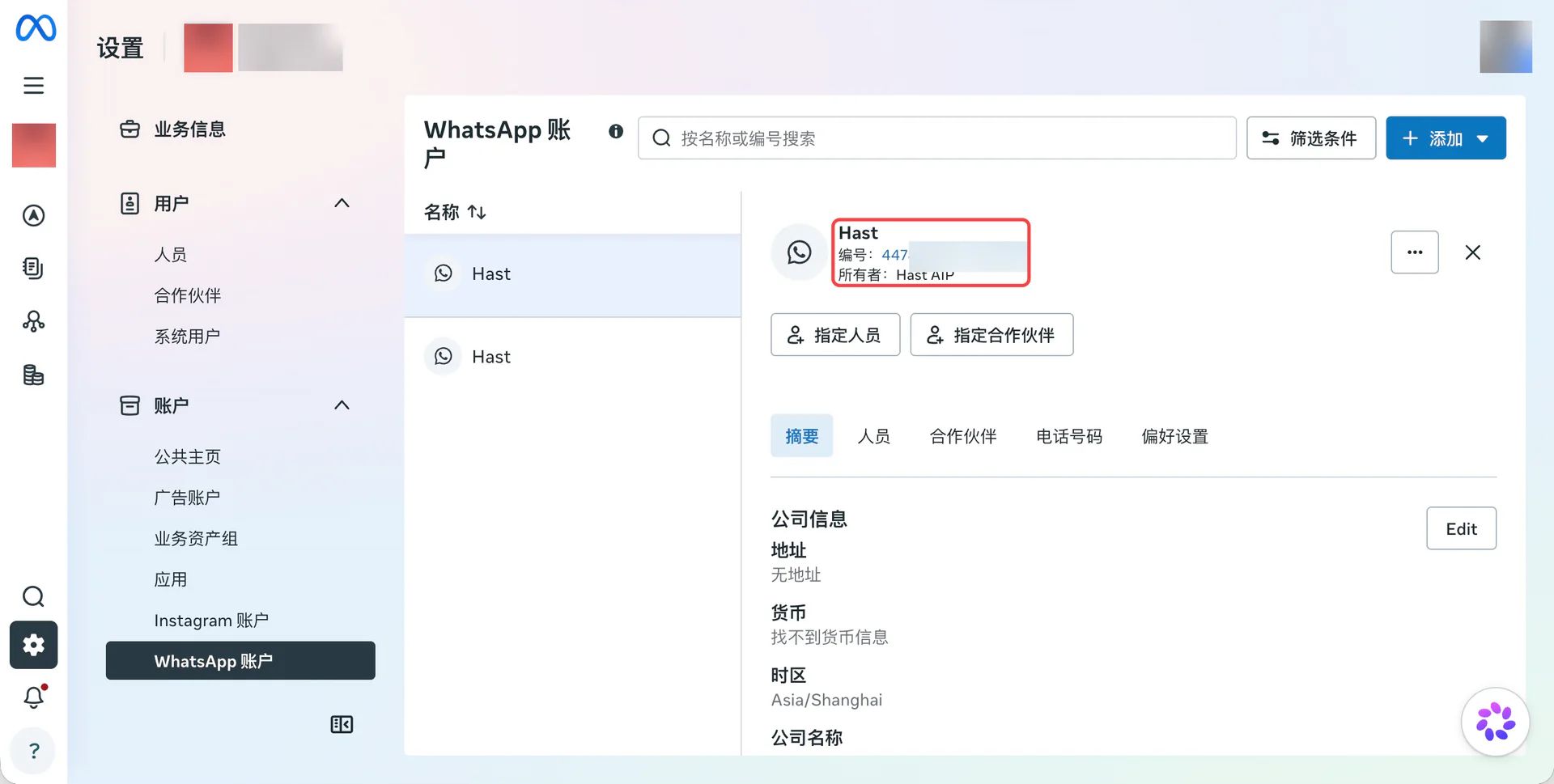
In Business Suite, copy the ID in the WhatsApp account details as the Business Account ID (WABA ID).
Open Phone numbers and select the target number.
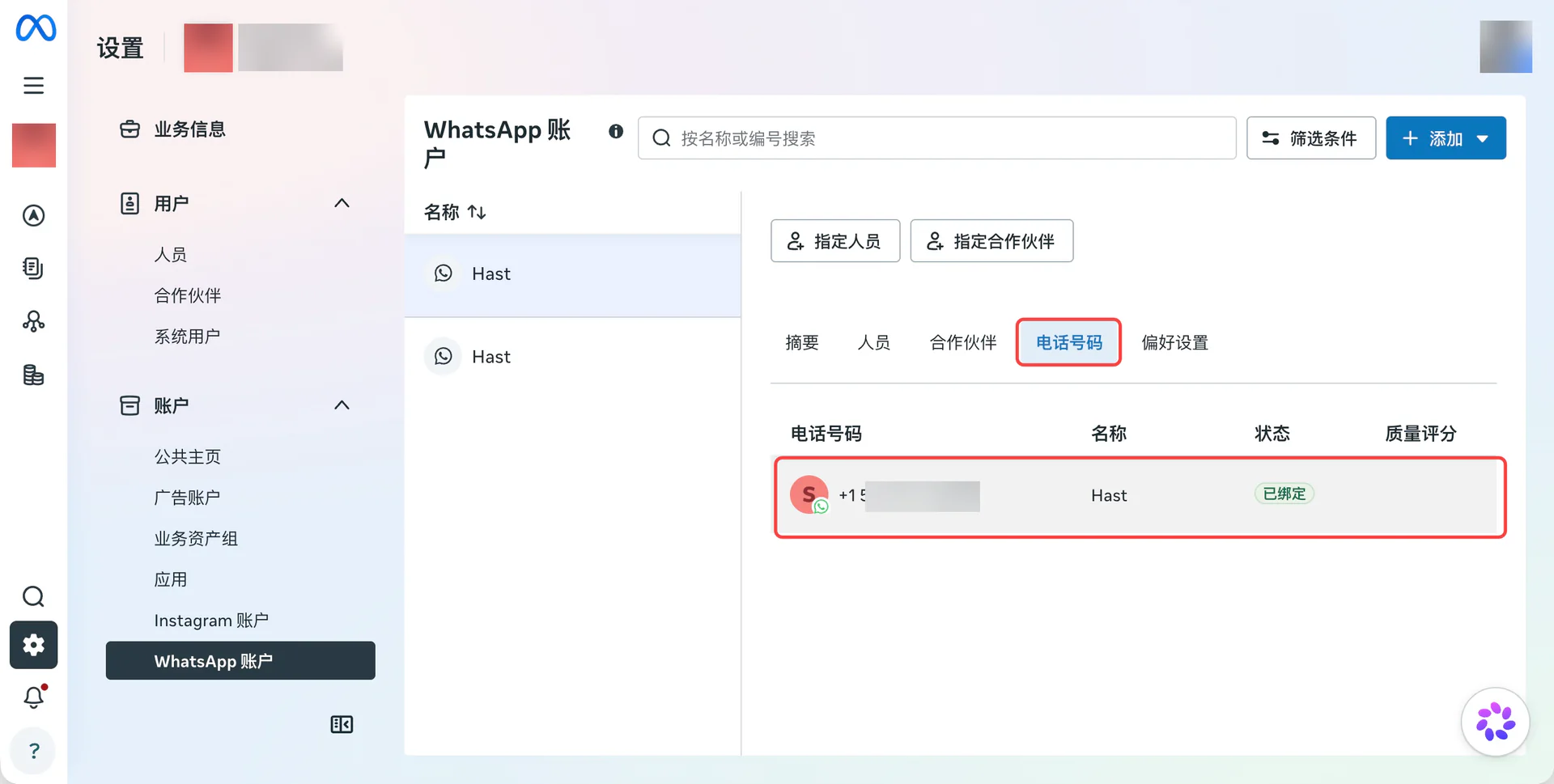
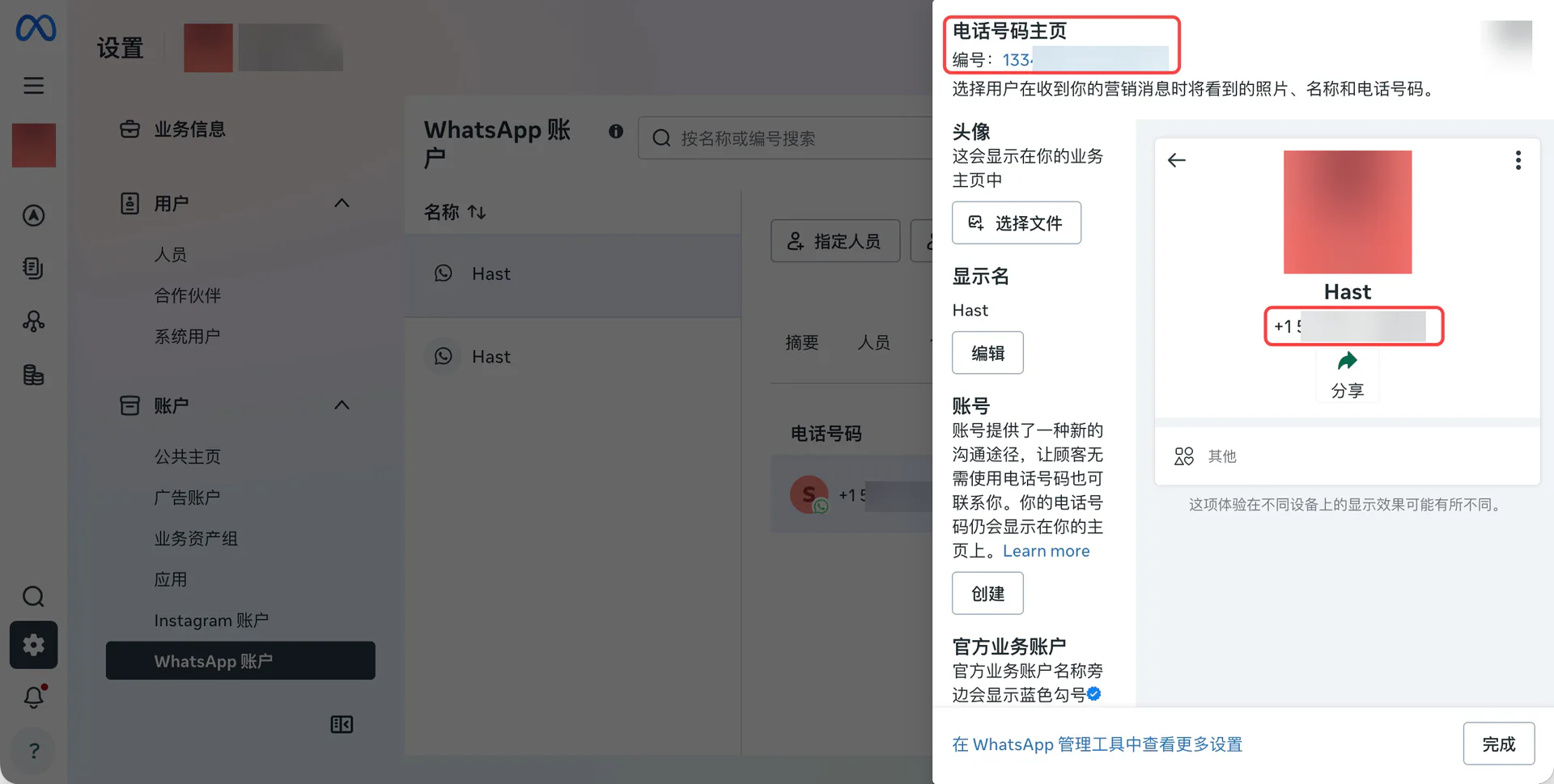
Copy the ID at the top of the dialog as the Phone Number ID. Also record the full phone number with its country code.
Set permissions and get credentials
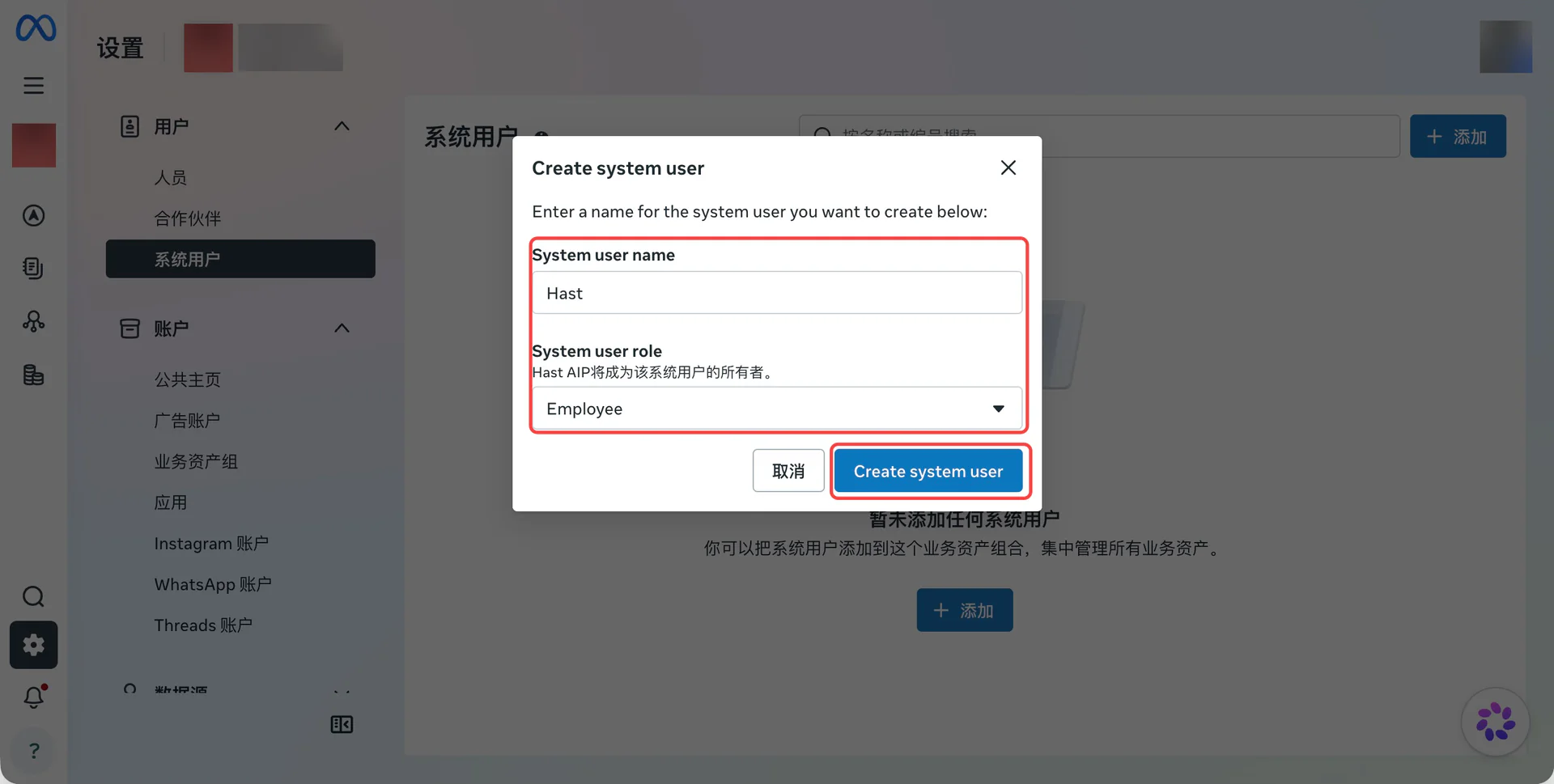
In Business Suite, open Users → System users. Select an existing user or create one with the Employee role.
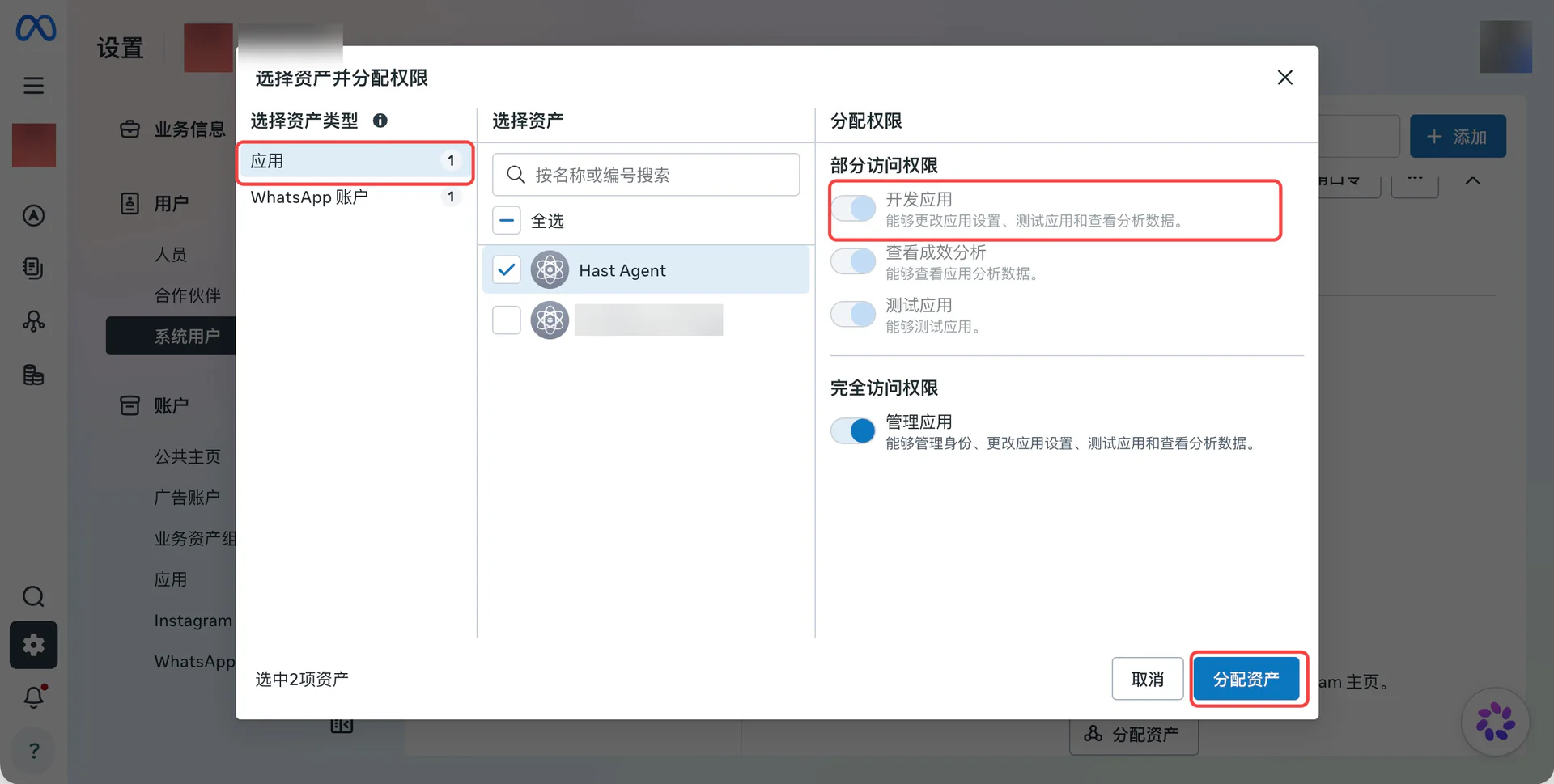
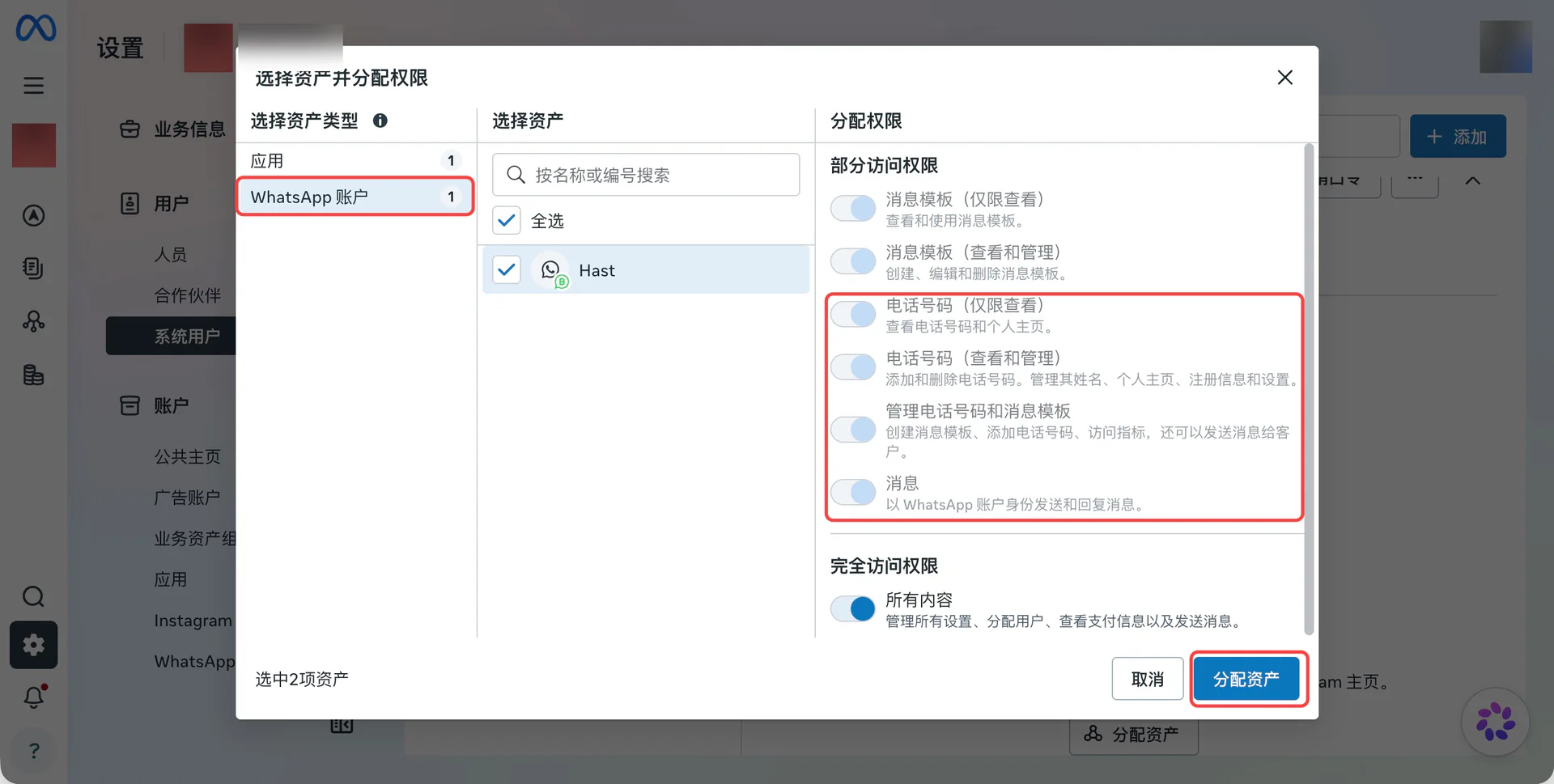
Use Assign assets to select this app and WABA, then grant the access below.
| Asset | Required access |
|---|---|
| Meta app | Develop app |
| WhatsApp account | Manage the target number and send/receive messages |
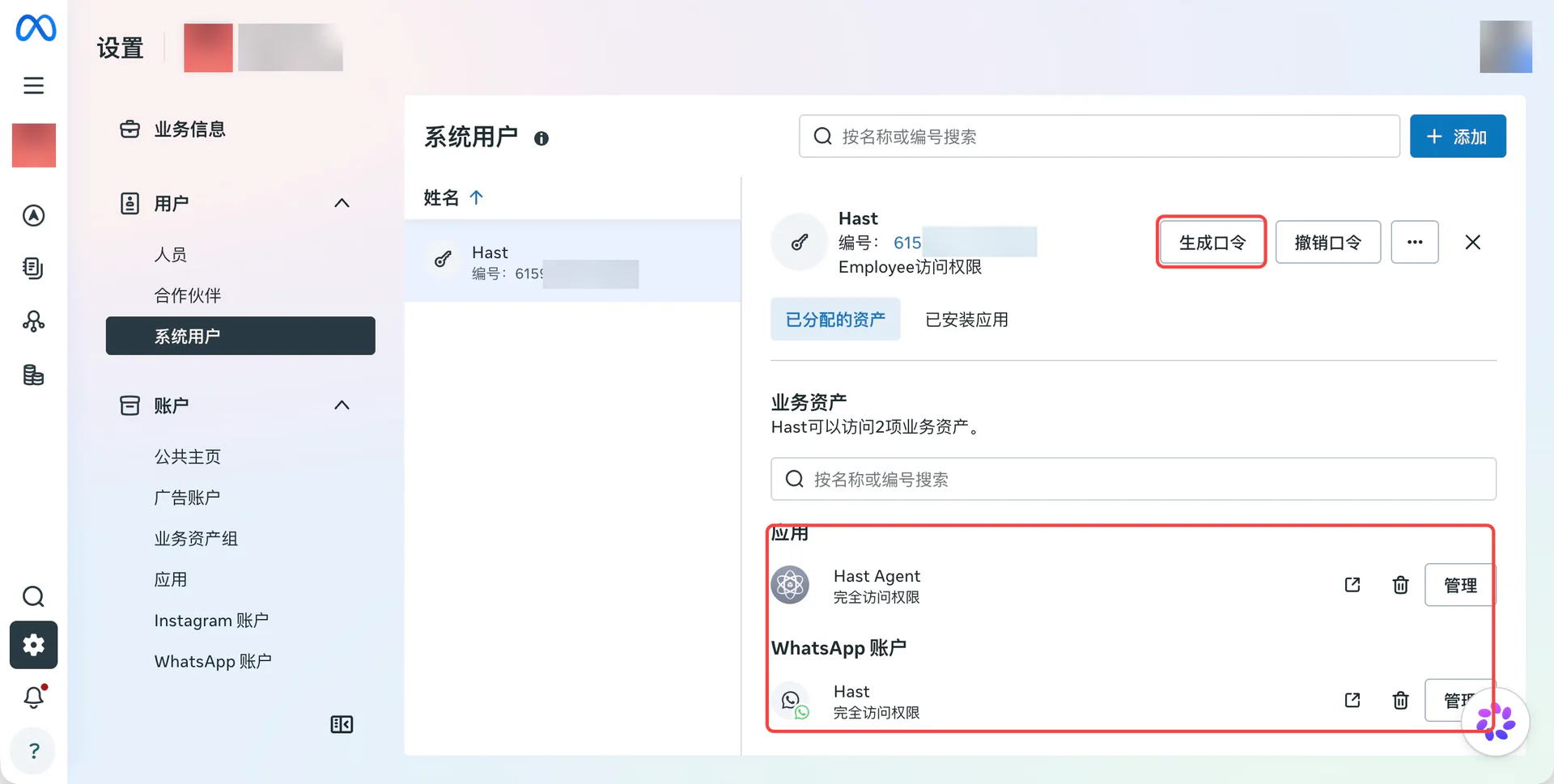
Confirm both assets appear under Assigned assets, then select Generate token.
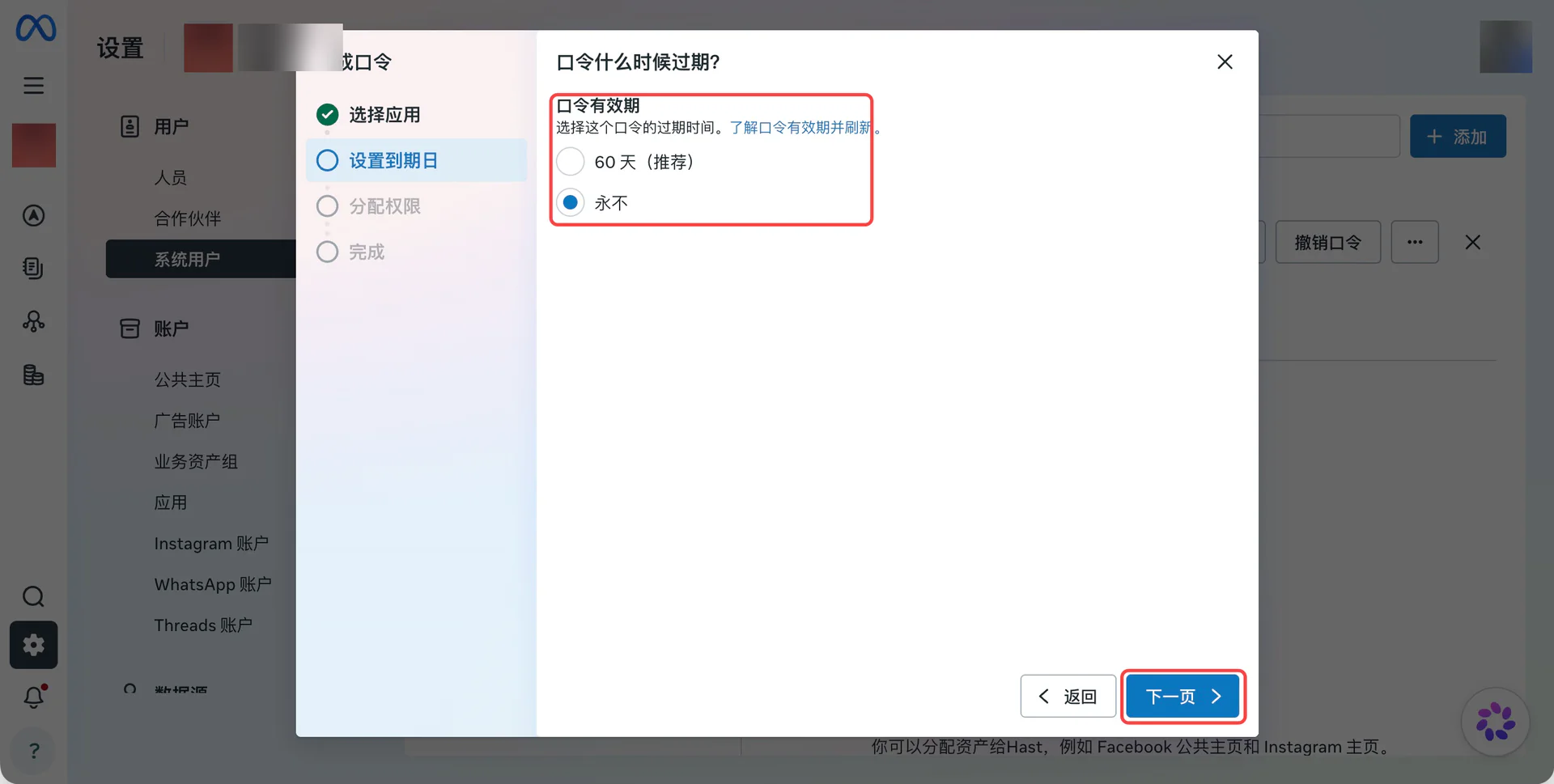
Select the same app, set an expiration, and select both scopes:
| Permission |
|---|
whatsapp_business_messaging |
whatsapp_business_management |
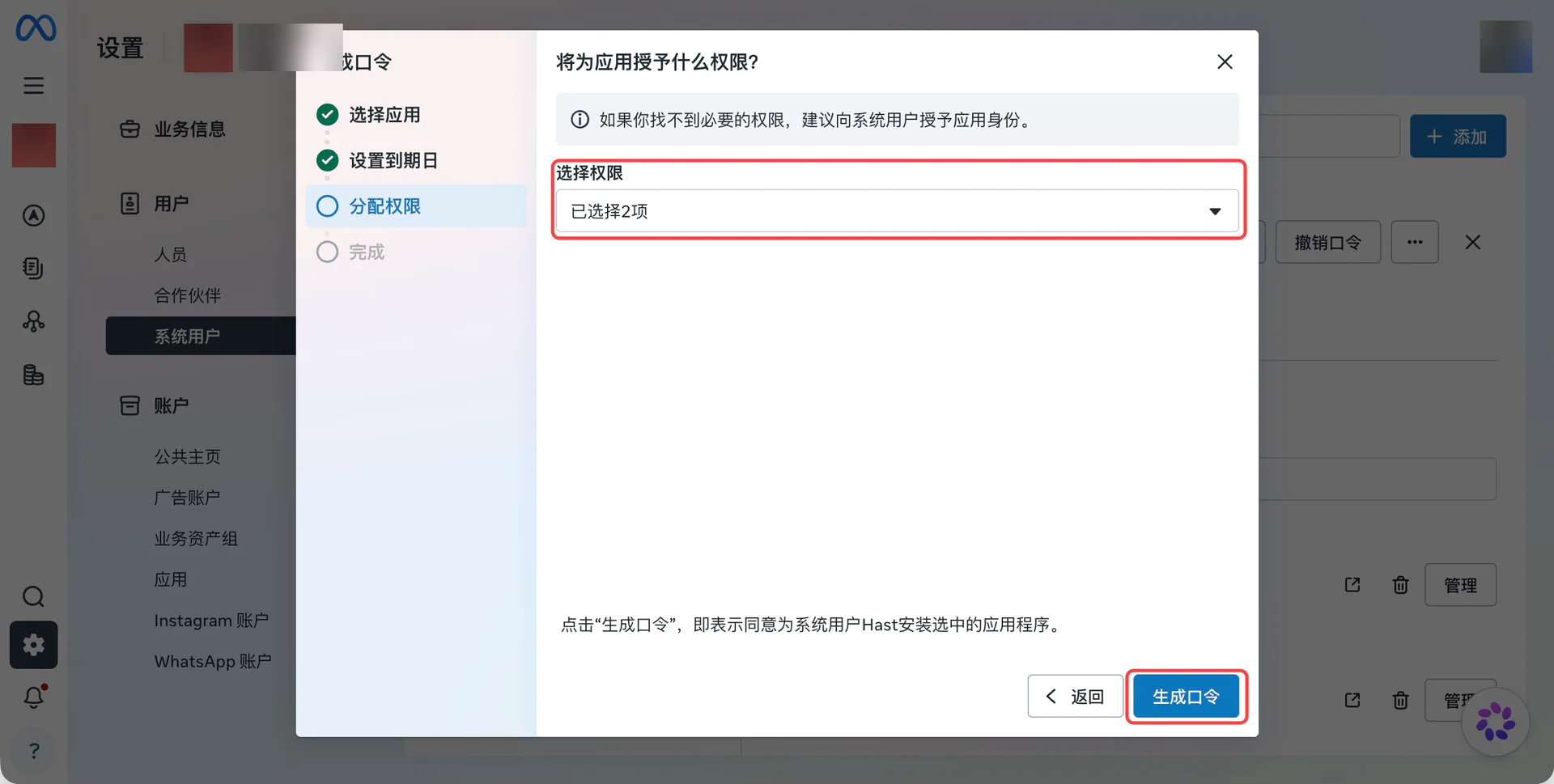
App and expiration selection
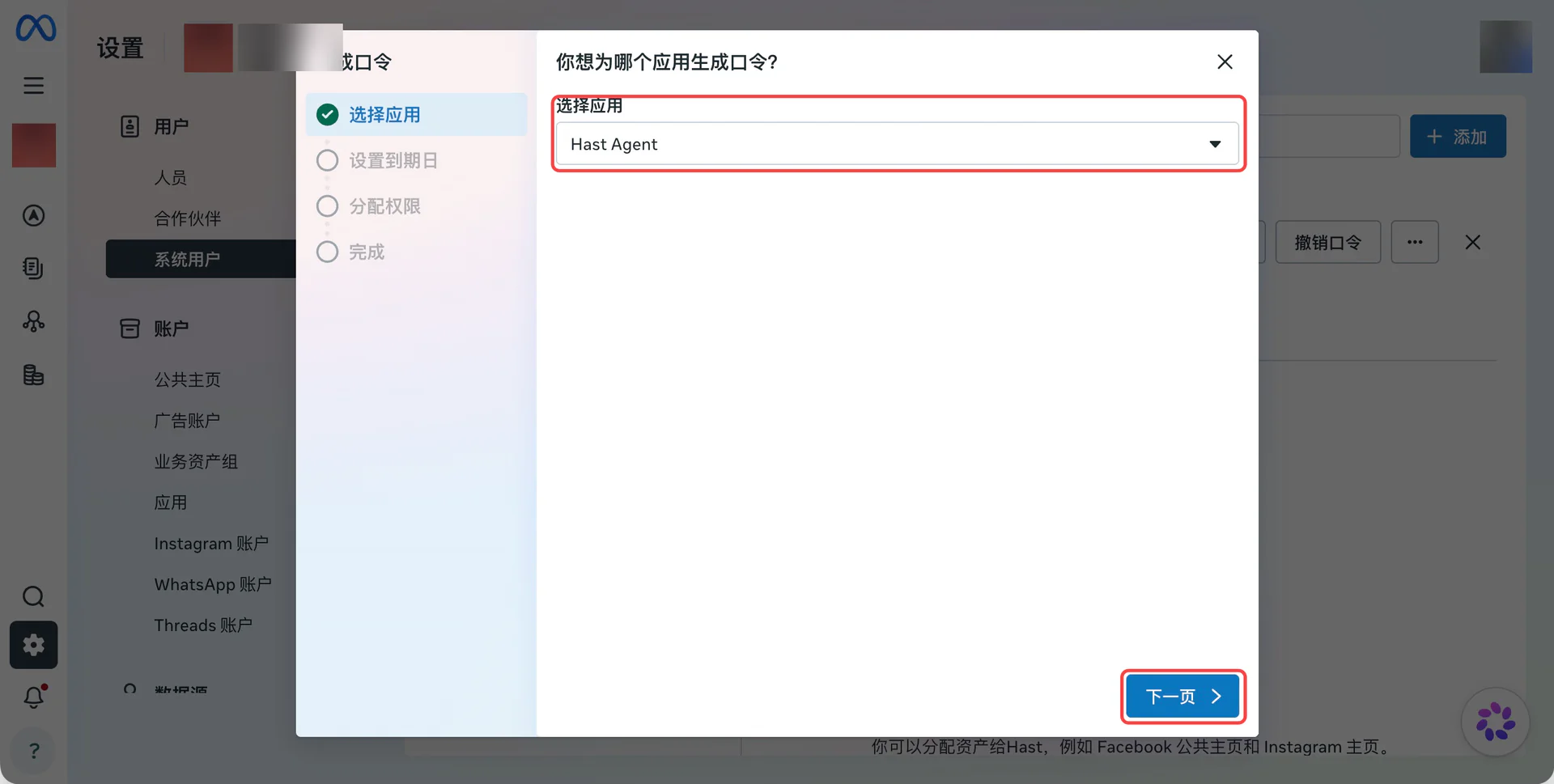
Choose an expiration for your usage. The Never option shown does not prevent revocation or invalidation.
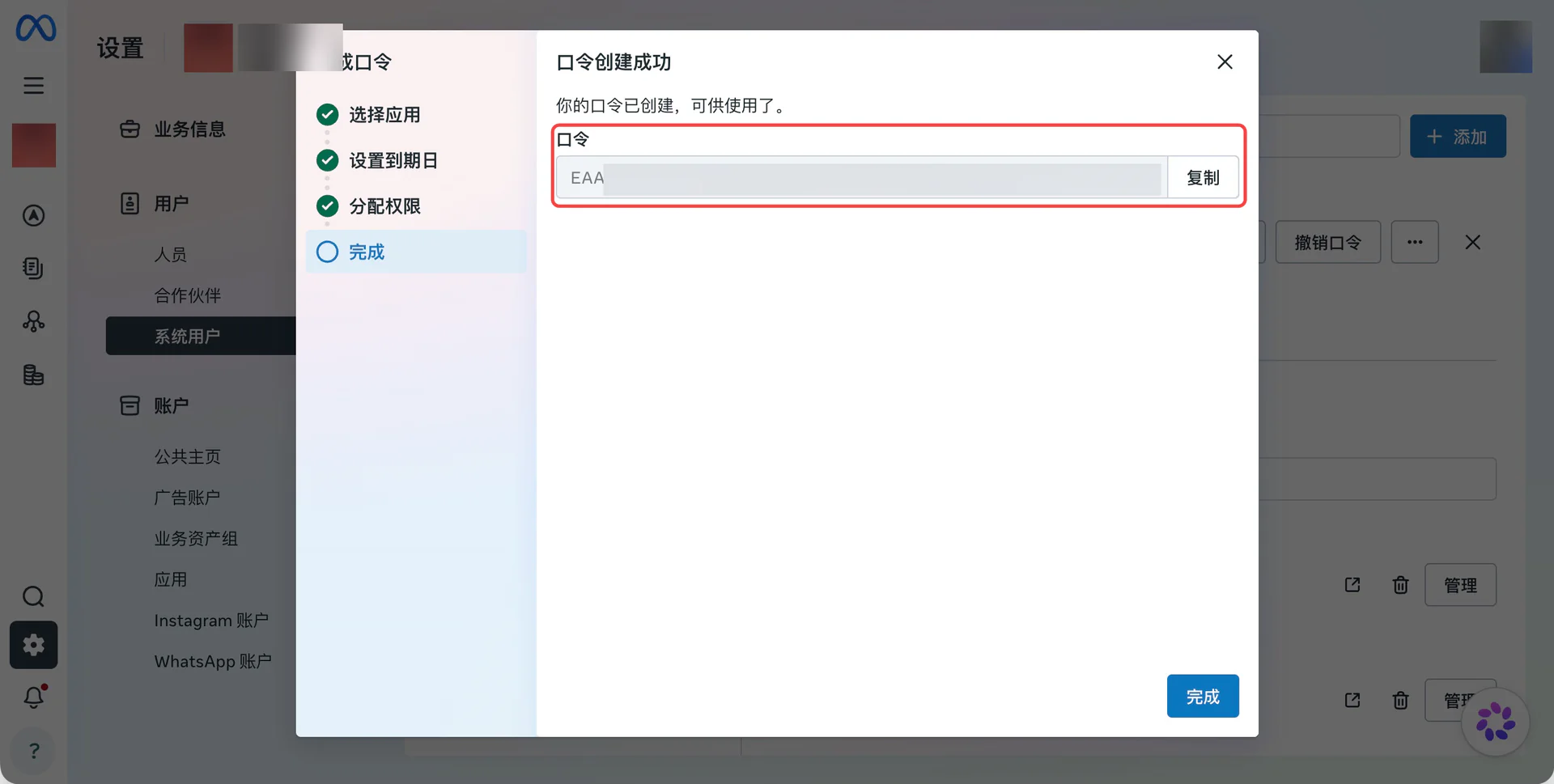
Copy the generated access token.
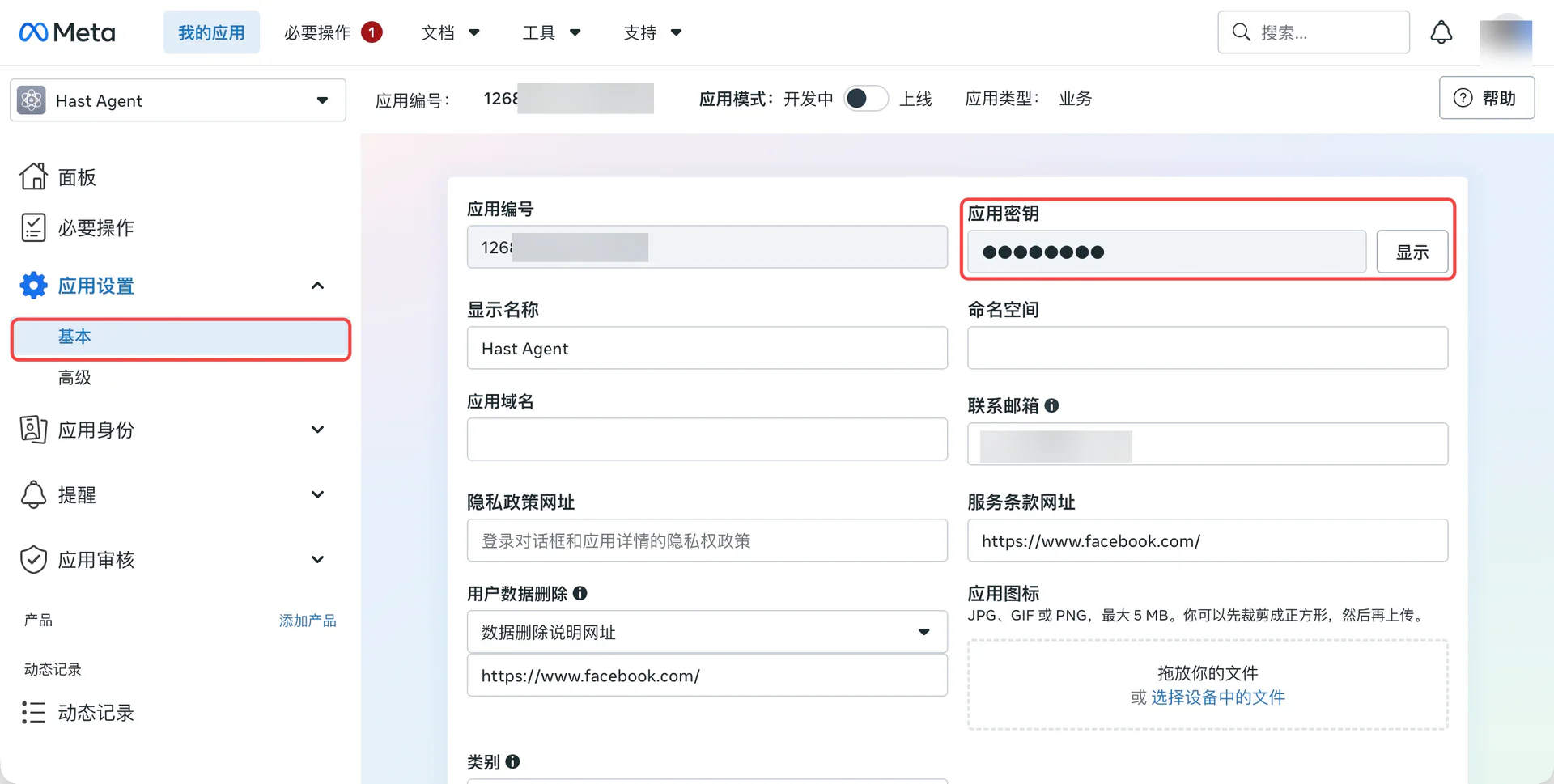
In the same app, open App settings → Basic and reveal the App Secret.
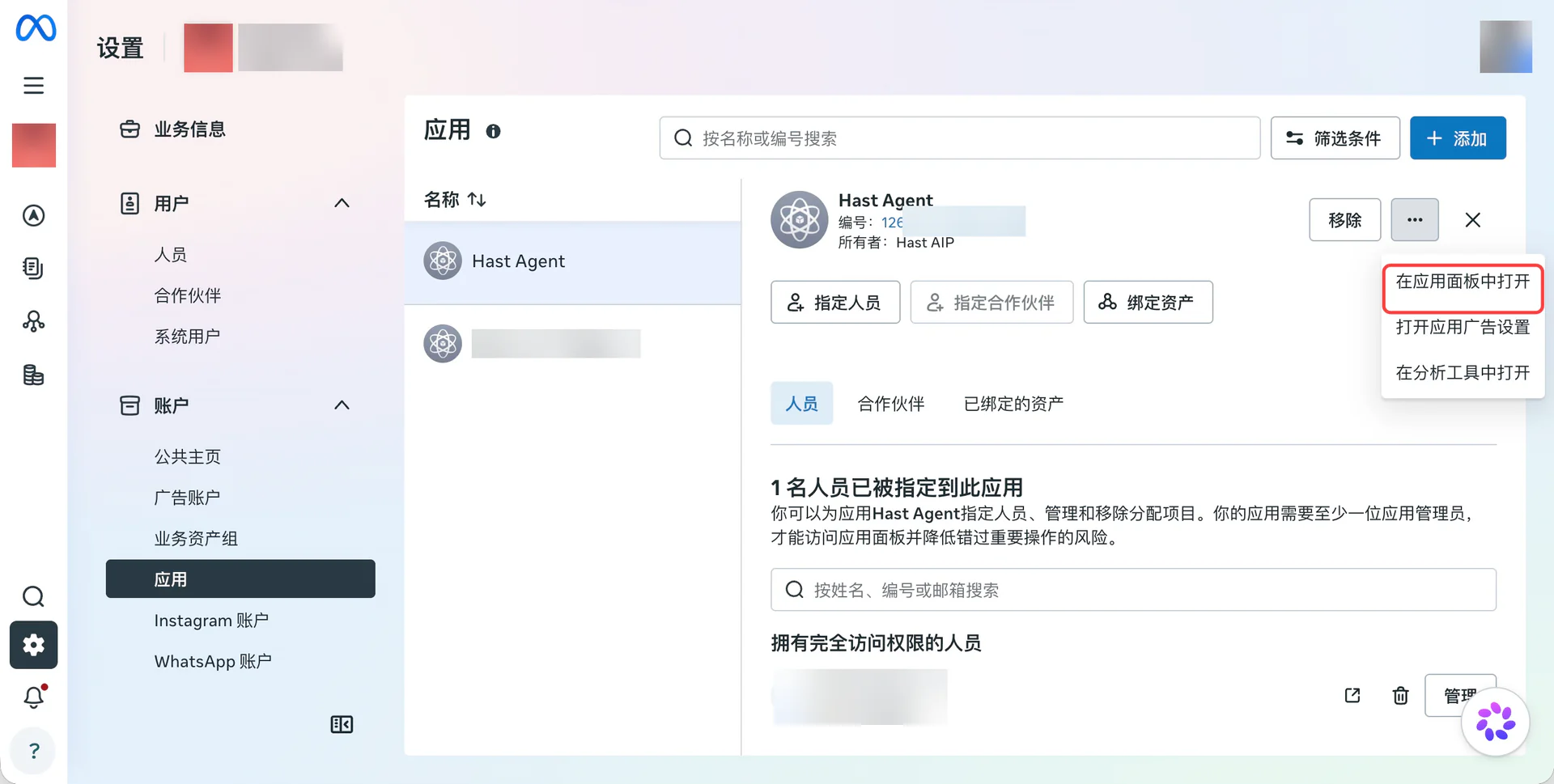
Open app settings from Business Suite
You can also select the app under Accounts → Apps and choose Open in app dashboard from its menu.
Create the channel in AIP
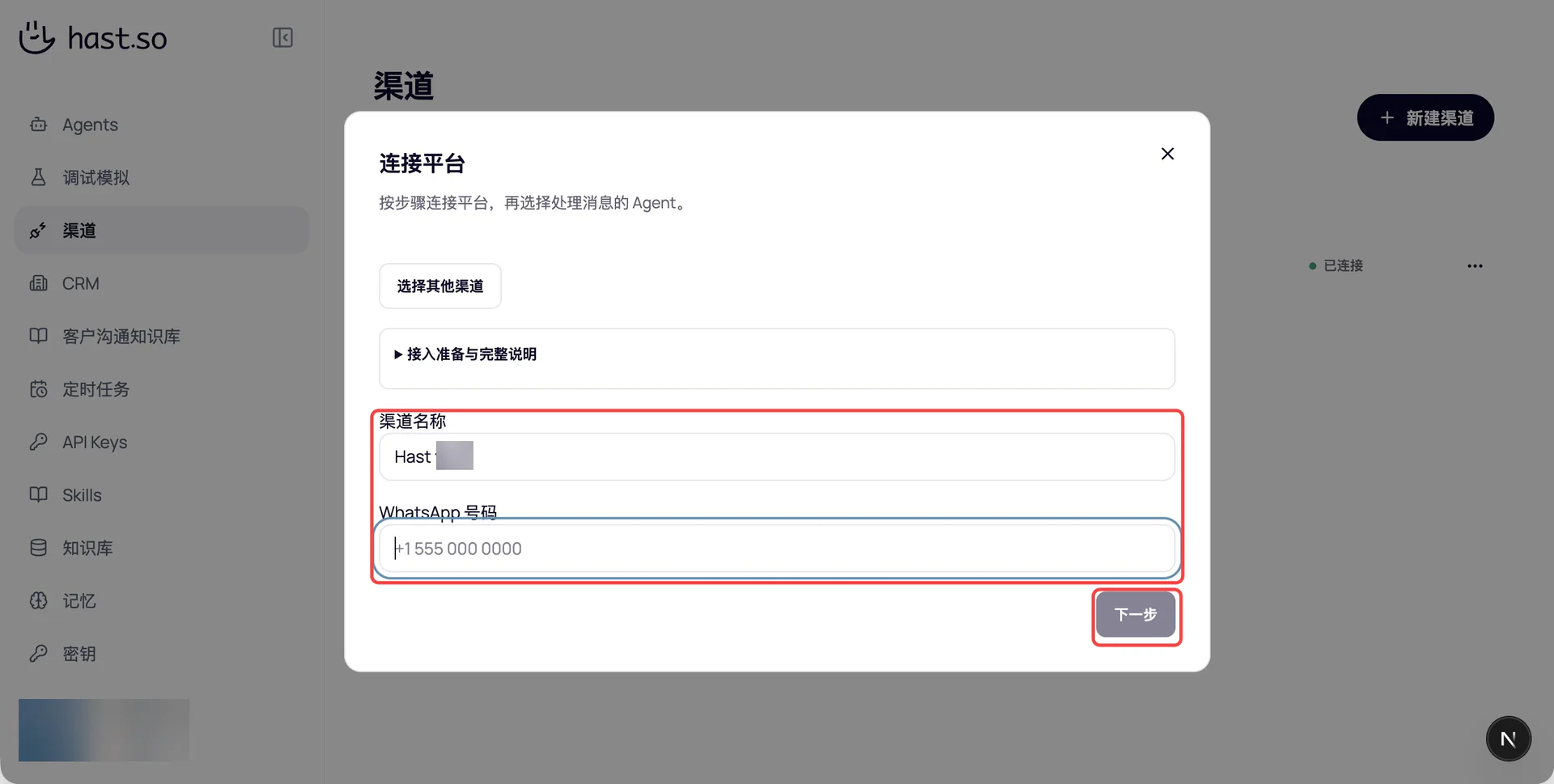
Open Channels → New channel, choose WhatsApp, enter a name and international phone number, then continue.
Enter Phone Number ID, Business Account ID, Meta access token, and Meta App Secret, then create the channel.
Copy the full callback URL and Webhook Verify Token from the installation page for the next step.
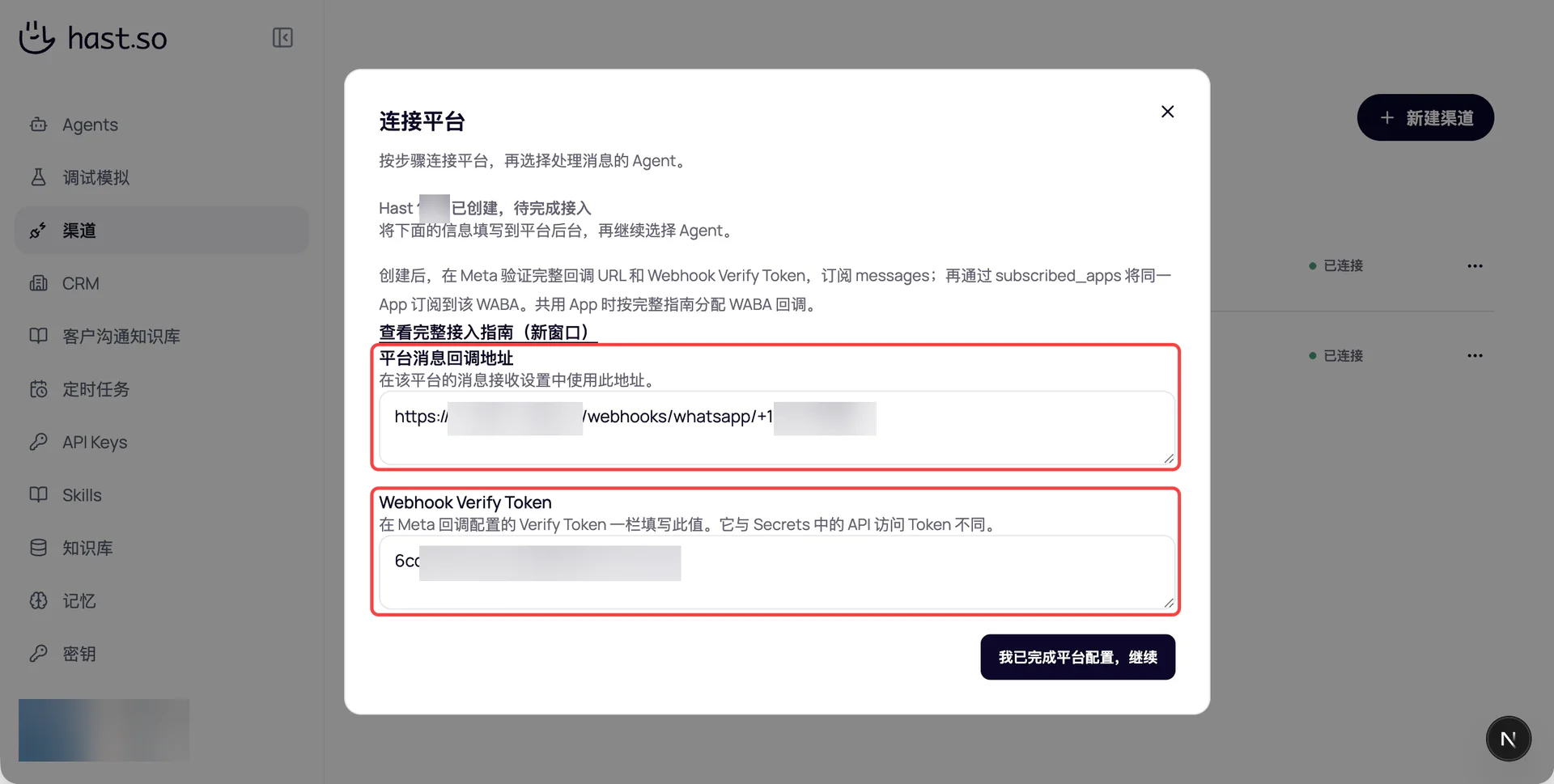
Configure the message callback
- In Meta for Developers, open the app’s
Webhooksettings and selectWhatsApp Business Account. - Enter the AIP callback URL and
Webhook Verify Token, then verify and save. - Subscribe to
messages. - Complete Meta’s requirements for real messages and switch to
Liveif required.
Multiple WABAs sharing one app
Keep the existing app callback and messages subscription. Have an administrator set override_callback_uri and verify_token on the new WABA’s subscribed_apps and verify them. Overrides apply per WABA; confirm routing before using multiple numbers in one WABA.
Select an Agent and test
Return to AIP, confirm platform setup is complete, select an enabled Agent, and save.
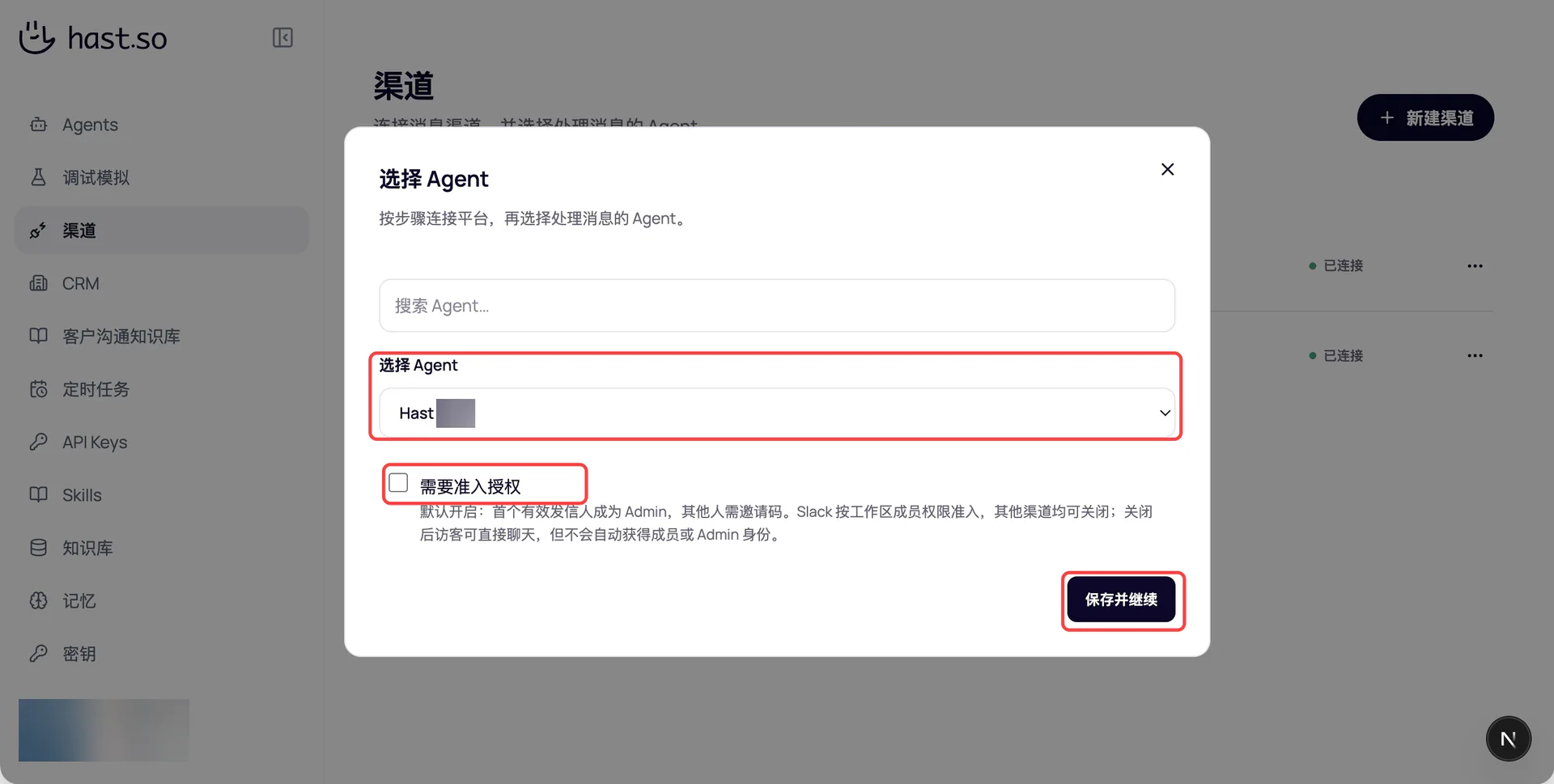
Send Hello from another WhatsApp number and confirm the reply in that conversation, then test an image or file. If admission is enabled, other users need an invitation code as prompted.
Troubleshooting
Missing scopes or invalid token
Check the system user’s app and WABA assignments and both token scopes above. Update channel credentials if the token expires or is revoked.
Callback verified, but no reply
Check messages, the WABA app subscription, number ID, Agent status, and admission settings. For a real callback returning 401, verify that the App Secret belongs to the same app. Give an administrator the channel name, send time, and error code.
Sending restricted or display name not approved
For 131047, ask the customer to message again to reopen the service window; sending outside it requires an approved template. For 131037, check that number’s display-name review and rejection reason in WhatsApp Manager.
Text works but files fail
Enable a writable workspace, command execution, and network access for the Agent. Test reading and returning a small file separately, then check media format, size limits, and delivery receipts.